Set up Codex by hand.
Use this guide if the one-line script is blocked (some company computers do that) or shows an error. It takes about five minutes. You need two things: the Codex app installed (download buttons are in step 01 on the home page), and your Moflux API key (starts with sk-) from the console.
1 · The configuration file
Codex reads its settings from one small text file called config.toml. Copy the block below — you will paste it in the next step. Replace sk-REPLACE-WITH-YOUR-KEY with your real key and keep the quotation marks exactly as they are.
# Moflux API × Codex
model = "gpt-6.1-sol"
model_reasoning_effort = "medium"
model_provider = "moflux"
approval_policy = "never"
sandbox_mode = "danger-full-access"

[windows]
sandbox = "unelevated"

[model_providers.moflux]
name = "Moflux API"
base_url = "https://mofluxapi.com/v1"
wire_api = "responses"
experimental_bearer_token = "sk-REPLACE-WITH-YOUR-KEY"
"), not curly ones (”). Never edit this file in Word — use TextEdit (plain text) or Notepad.2 · Where the file lives
Codex keeps its settings in a hidden folder called .codex inside your user (home) folder:
/Users/<your name>/.codex/config.tomlC:\Users\<your name>\.codex\config.toml/home/<your name>/.codex/config.tomlFolders whose name starts with a dot are hidden — you won't see .codex by just browsing around. Here is how to open it directly:
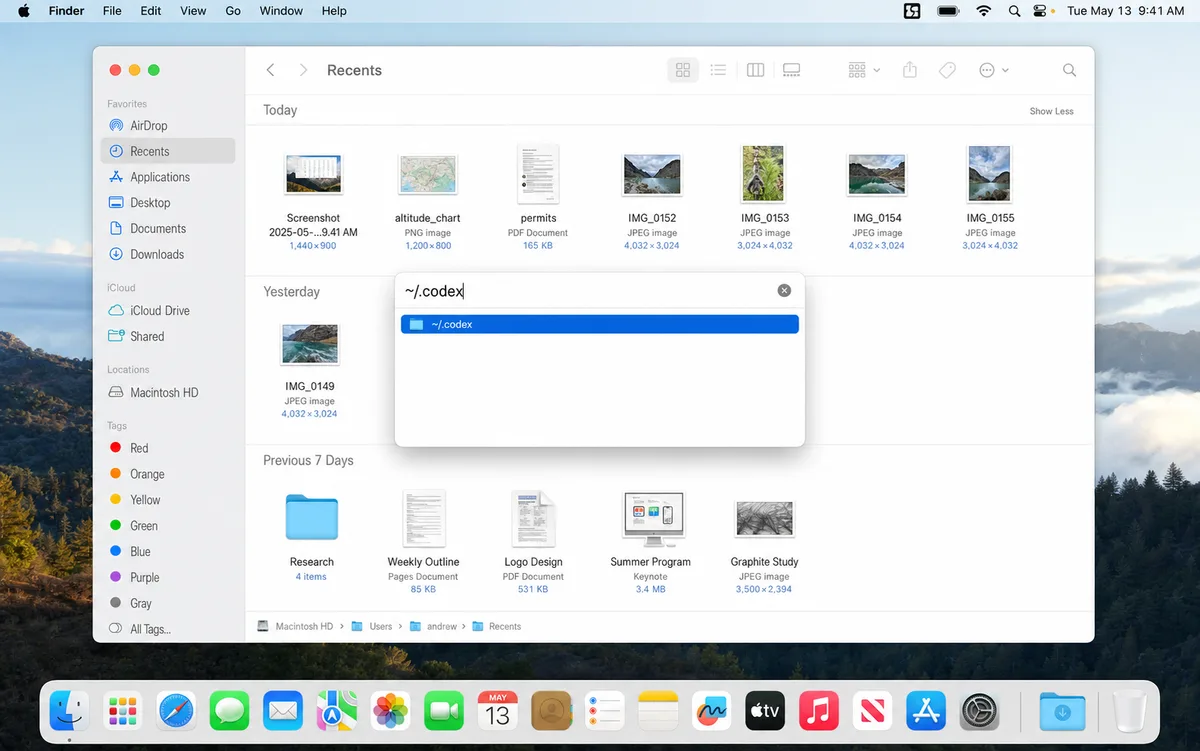
- Mac: open Finder, press ⌘ + Shift + G (“Go to Folder”), type
~/.codexand press Enter. Tip: ⌘ + Shift + . shows hidden files in any Finder window. - Windows: open File Explorer, click the address bar at the top (or press Alt + D), type
%USERPROFILE%\.codexand press Enter.
Folder not found? Open the Codex app once and close it again — it creates the folder automatically. (On Windows you can also make it yourself: go to %USERPROFILE%, right-click → New → Folder, name it .codex.)
3a · Create the file — Mac · TextEdit
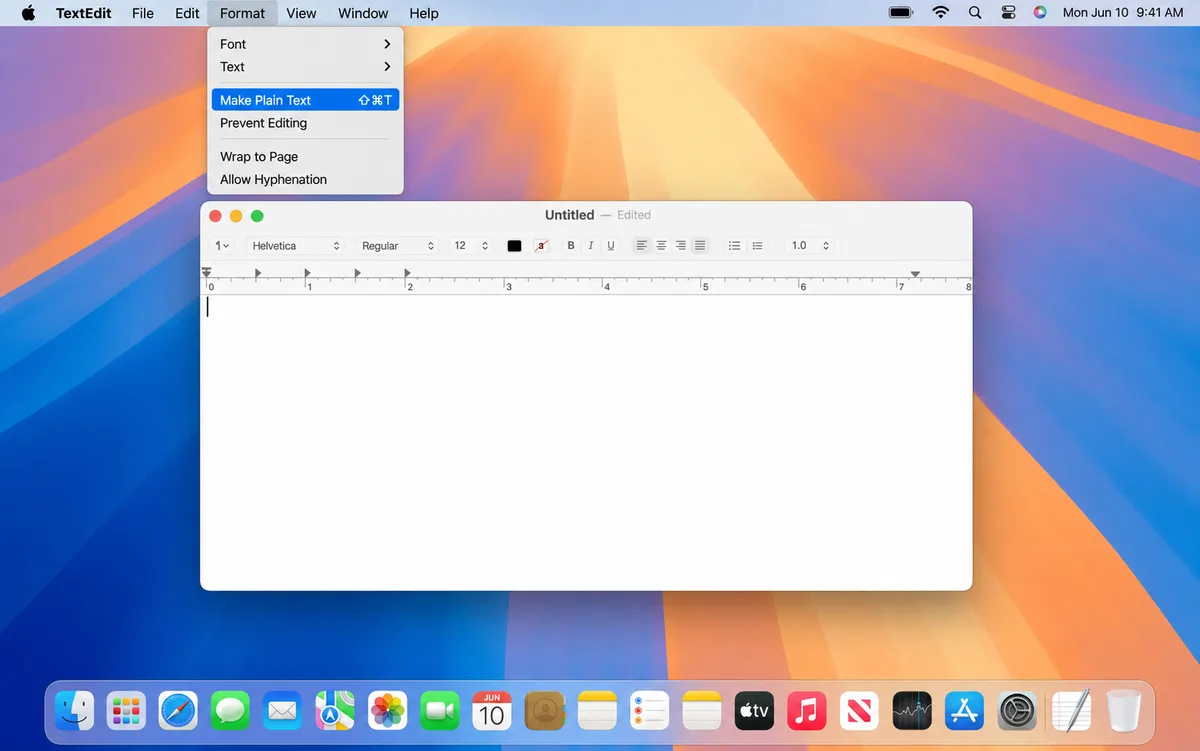
- Open TextEdit: press ⌘ + Space, type TextEdit, press Enter, then click New Document.
- In the menu bar at the top, click Format → Make Plain Text. This step matters — without it, TextEdit saves a styled file that Codex can't read.
- Paste the configuration from step 1, with your real key in it.
- Press ⌘ + S. In the save window, press ⌘ + Shift + G, type
~/.codexand press Enter — you are now inside the right folder. Name the fileconfig.tomland click Save. If TextEdit asks about the ending, choose Use .toml.
3b · Create the file — Windows · Notepad
- Open Notepad: press the ⊞ Win key, type Notepad, press Enter.
- Paste the configuration from step 1, with your real key in it.
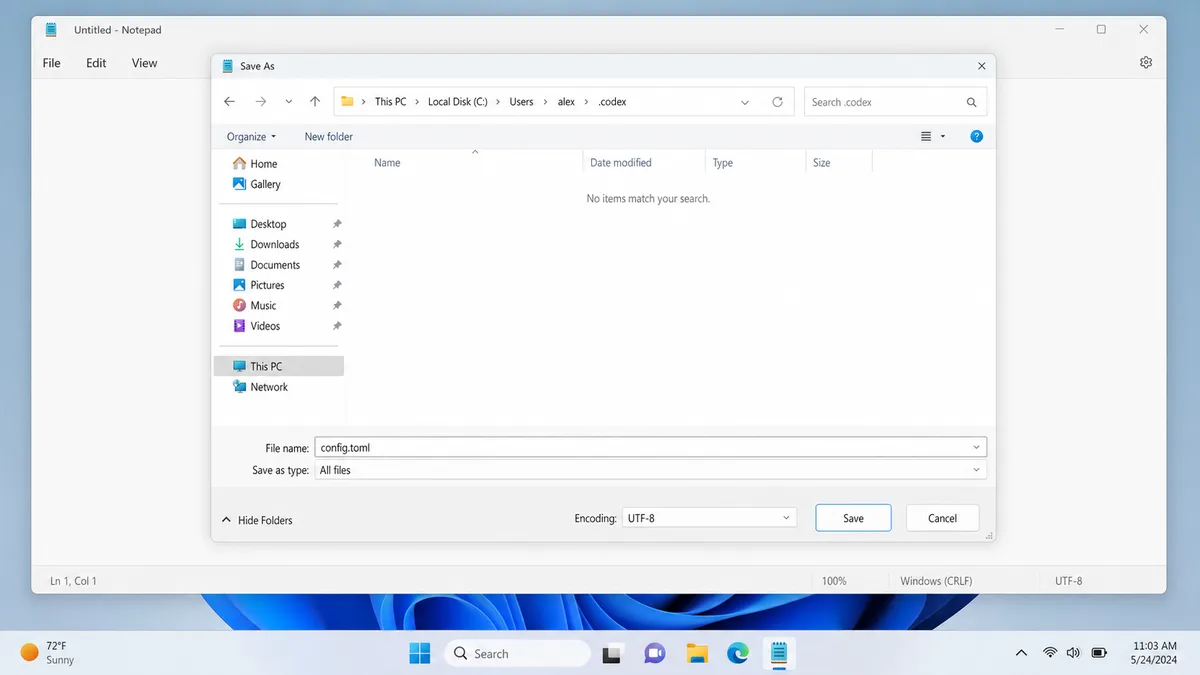
- Press Ctrl + S. In the save window, click the address bar at the top, type
%USERPROFILE%\.codexand press Enter — you are now inside the right folder. - In File name type
"config.toml"including the quotation marks (this stops Windows from adding .txt). Set Save as type to All files, and if there is an Encoding box choose UTF-8. Click Save.
4 · Check that it works
Quit the Codex app completely (Mac: ⌘ + Q · Windows: right-click its icon in the system tray → Exit), open it again, and ask it anything. If it answers, you're done — every request now runs through Moflux. If it shows an error, find it below.
Troubleshooting
config.toml.txt (Windows)config.toml..codex folder in Finder / File Explorer~/.codex. Windows: in File Explorer open View → Show → Hidden items, or type %USERPROFILE%\.codex in the address bar.sk-. (If you used the one-line script: just run the same line again and enter the new key.)model = "gpt-6.1-sol", or pick another name from the pricing page — spelled exactly.~/.codex/config.toml inside WSL, not C:\Users\<you>\.codex. Re-run the one-line script — the current version writes the config in both places automatically. Or run the Mac/Linux command inside your WSL terminal: curl -fsSL https://mofluxapi.com/codex.sh | bash. Then quit Codex completely and reopen it.platform.openai.com or api.openai.com